Calendly + HubSpot
Calendly’s HubSpot integration connects your meetings with your CRM. It automatically adds or updates contacts and meeting activity in HubSpot.
When a Calendly meeting is scheduled, canceled or marked as a no-show, HubSpot will:
- Create contacts if the invitee isn't already in HubSpot
- Create and update activities
- Update meeting notes
- Update custom questions and responses
Before you begin
You'll need the following:
- Calendly administrator privileges
- A HubSpot free or paid account with HubSpot admin privileges
What the integration does
When someone books a meeting with Calendly:
- If the invitee’s email is not in HubSpot, a new contact is created with their name and email.
- If the contact already exists, HubSpot adds the meeting activity, but does not change the contact's details or owner.
- If the Calendly user’s email doesn’t match their HubSpot email, the contact owner is marked “unassigned.”
What HubSpot adds to the contact
When an invitee schedules a meeting, a new activity will be created with the following:
- Type: Meeting
- Meeting Name
- Owner
- Contact
- Event Duration
- Attendee count
The meeting title appears as "Meeting-Calendly: {Event name}". These activities are logged under the contact’s timeline, not in HubSpot’s Meeting tool.
What happens when meetings change
Canceled or rescheduled meetings:
- HubSpot updates the activity and notifies both parties.
- Canceled meetings show “[Canceled]” at the beginning of the meeting title.
- HubSpot keeps past meetings for reference.
Meeting length:
- HubSpot rounds any meeting shorter than 15 minutes up to 15 minutes.
- If you edit meeting length in HubSpot, it won’t update in Calendly.
Connect HubSpot to Calendly
- In Calendly, go to the Integrations page.
- Select HubSpot, then select Connect HubSpot.
- Sign in to your HubSpot account, if prompted.
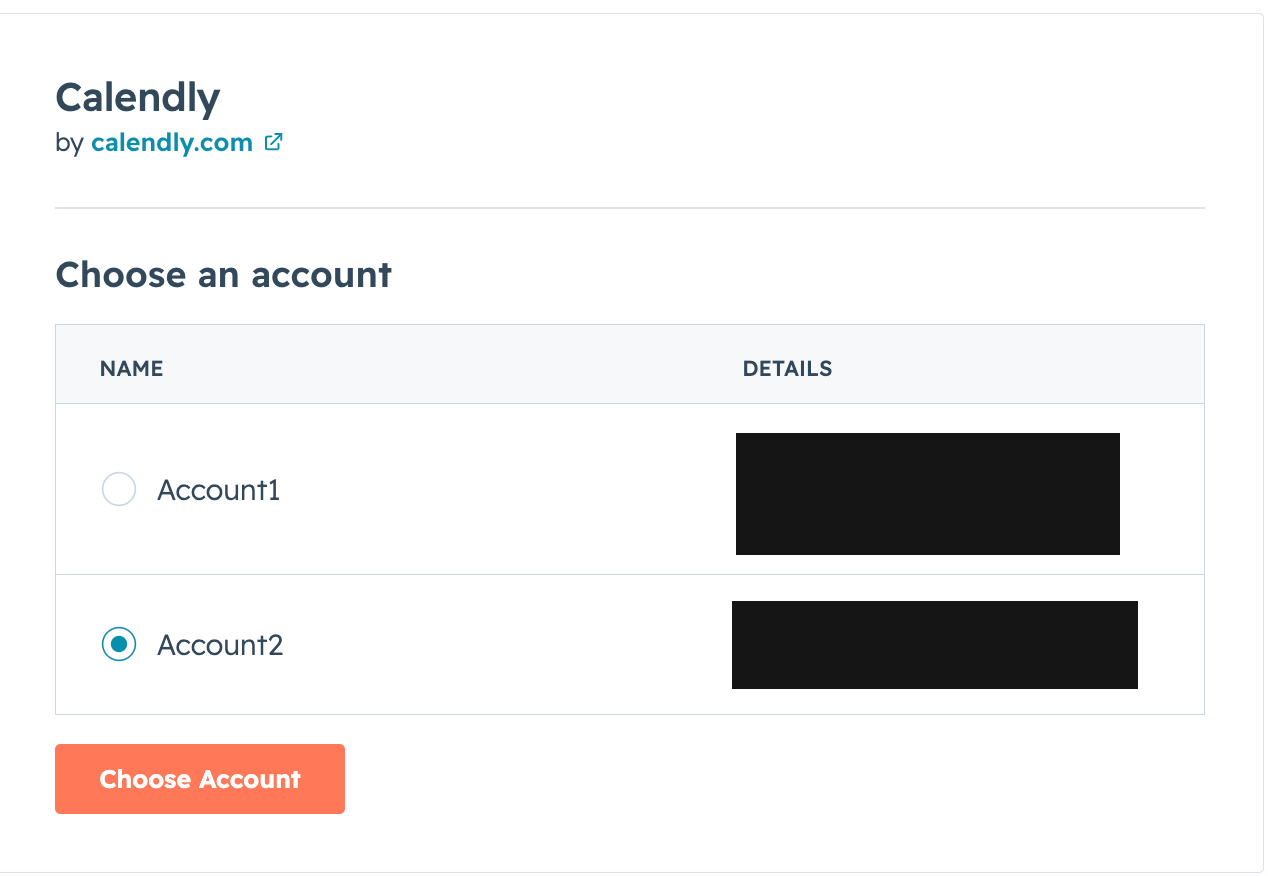
- If you have multiple HubSpot accounts, select the account you want to connect, then select Choose Account.
- Review the requested permissions, select the checkbox to confirm, then select Connect app.
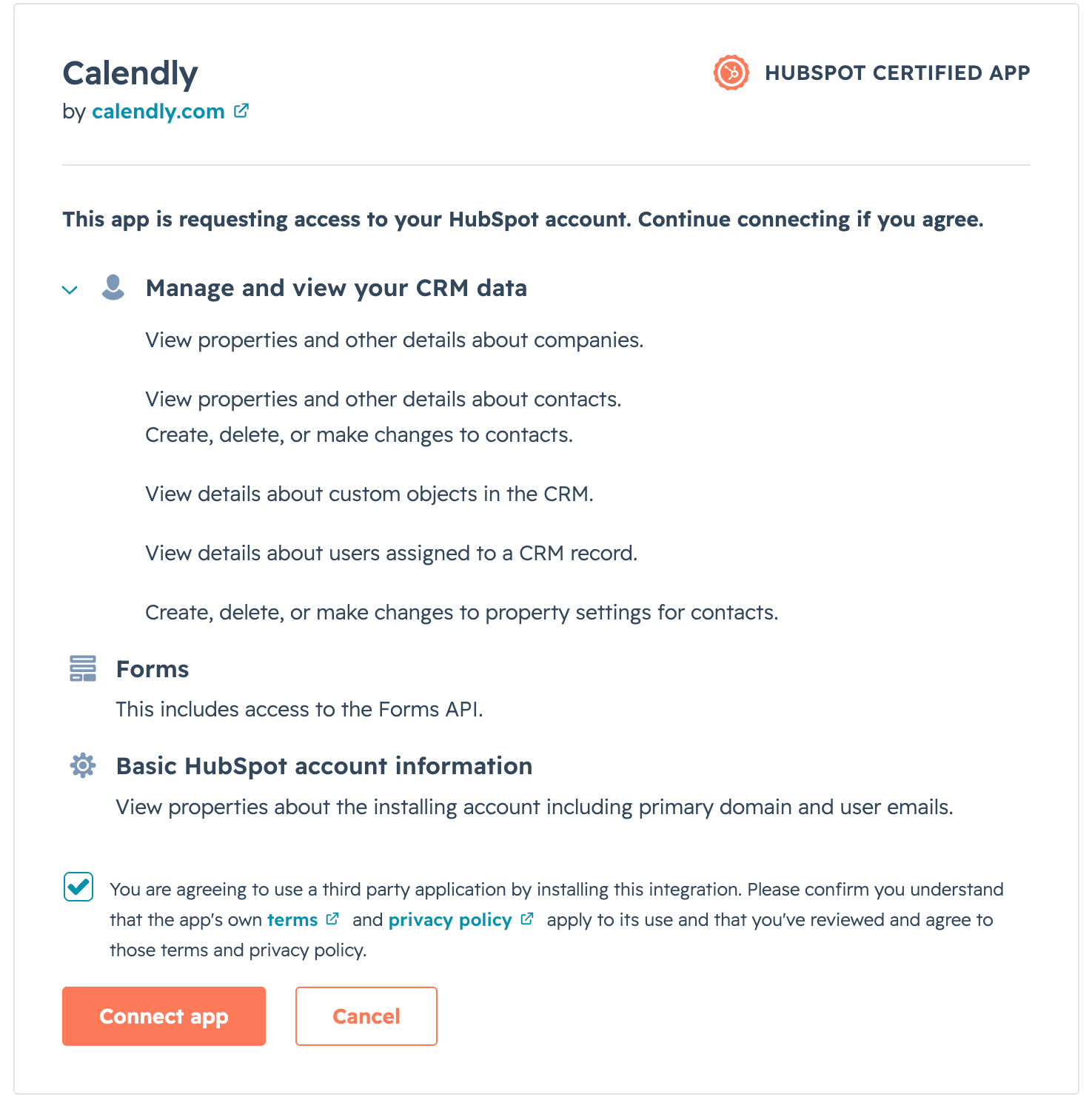
You’ll be taken back to Calendly once the connection is complete.
Calendly custom questions and answers
Calendly passes responses to your custom questions to HubSpot. You can find them under the Activity tab of the contact in HubSpot.
For contacts already in HubSpot, HubSpot will not update the responses in the contact properties. The responses under contact properties will stay the same, even if the contact books another meeting.
Map custom answers to HubSpot properties
To map Calendly form responses, like job title or company name, to additional fields in HubSpot, use HubSpot workflows.
Sync meeting outcome
You can sync the invitee’s Calendly meeting status with HubSpot’s meeting outcome field. This field will show whether a meeting was scheduled, completed, marked as a no-show, or canceled.
To turn this on, go to the HubSpot page in your Calendly account and enable the option labeled Push meeting status to HubSpot meeting outcome field.
Routing with HubSpot
With HubSpot forms or ownership lookup (available on Teams and Enterprise plans), you can route leads to the right team member based on expertise, availability, or account ownership.
This saves time and ensures fast follow-ups. For more details, check out Routing from HubSpot forms and Routing with HubSpot lookup.
Disconnect HubSpot and Calendly
Follow the steps listed below to disconnect your Calendly account from HubSpot.