Notetaker overview
Notetaker provides AI-generated summaries, transcripts, and action items for your recorded meetings. Shareable via email, link, or downloadable TXT file, Notetaker recaps help you stay organized and follow up quickly.
For example, you can:
- Share recap videos or meeting notes—with optional password protection
- Ask Notetaker about your meeting to get quick answers from your meeting transcript
- Enable recap templates tailored to your industry
- Export transcripts as TXT files to streamline documentation
Before you begin
- Notetaker works with Zoom, Google Meet, and Microsoft Teams even if you're not the host or the meeting isn’t scheduled through Calendly.
- Recaps aren't created for meetings with transcripts under 250 characters or without audio.
What to expect when Notetaker joins your meetings
- If you're the host: Notetaker joins your meeting at the scheduled time, asks for recording consent, and starts recording once admitted or confirmed. It appears as a meeting participant on the call.
- If you're not the host: Notetaker still joins on your behalf, but the host must approve the recording and choose to admit or deny it. You'll be notified if the meeting is being recorded. Notetaker will appear as a meeting participant.
Learn more about what happens when Notetaker joins your meetings.
Understand recording notifications and controls
Notetaker includes built-in features to help everyone understand when a meeting is being recorded and take action if needed.
Recording notifications
When Notetaker starts recording, it posts a message in the meeting chat. This lets all attendees know the meeting is being recorded. Some meeting apps may also show their own recording alert.
Stop recording anytime
Anyone in the meeting can stop the recording by typing /stop in the chat. Attendees can also ask the host or the Calendly user to remove Notetaker.
If you use the /stop feature, recording can’t be turned back on for that meeting.
Advance notice
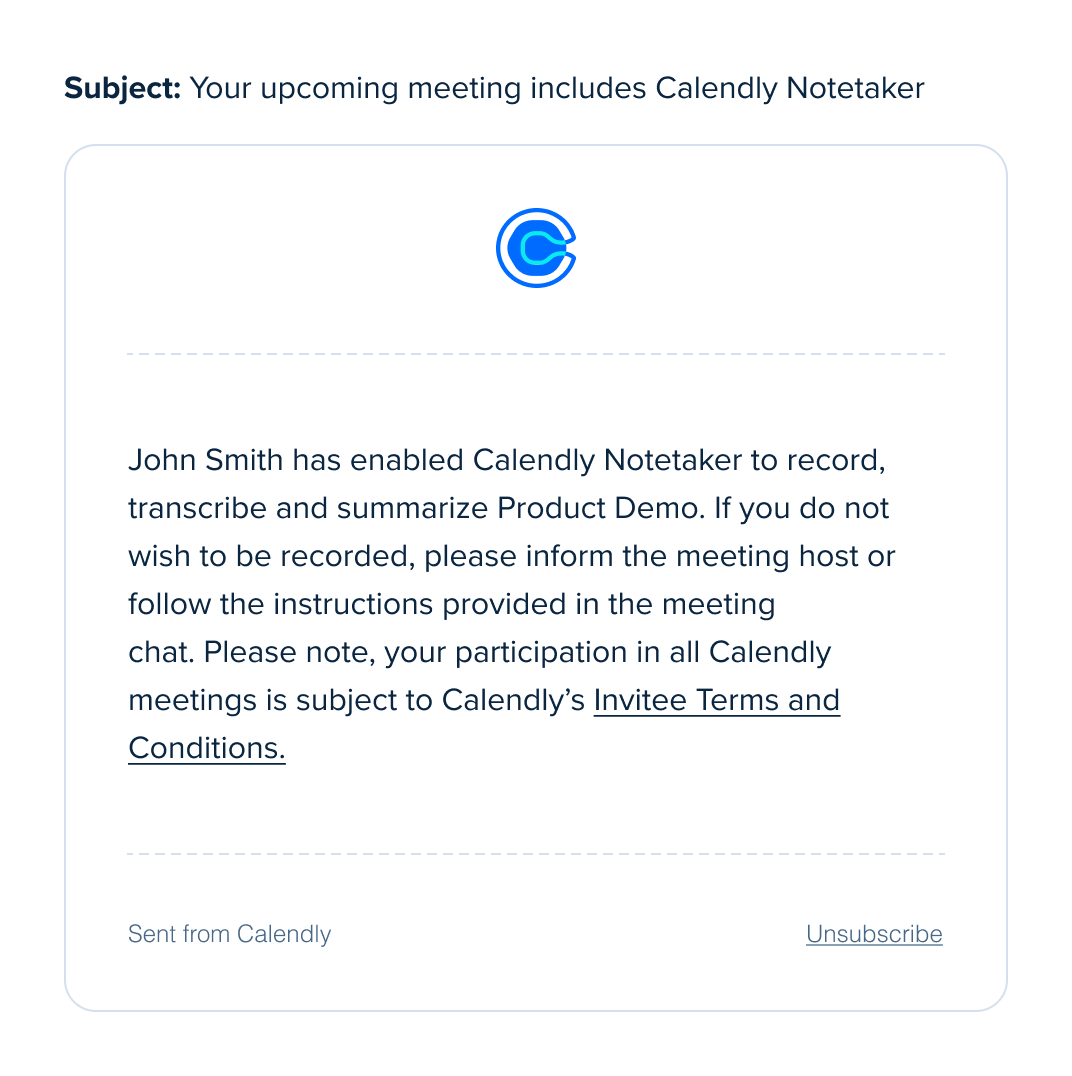
These features help attendees stay informed before and during the meeting. They also give everyone a clear way to stop the recording at any time.
Ready to learn more about Notetaker?
- How to set up Notetaker
- How to add Notetaker to your meetings
- How to share Notetaker recaps
- How to delete a Notetaker recap
- What to expect when Notetaker joins your meetings
- How to view calendar meetings in Calendly
- Troubleshooting Notetaker